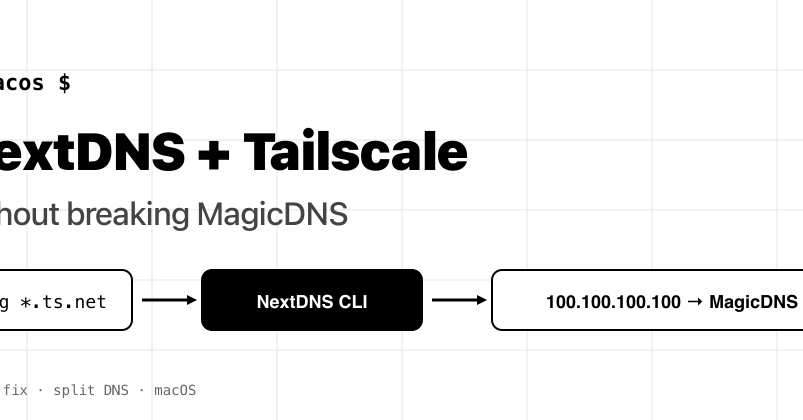
The terminal window blinks, a mocking cursor taunting you. Unknown host. You’re trying to SSH into your own machine, a machine that absolutely should be there. And yet, it’s lost in the digital ether.
This isn’t a existential crisis. It’s a DNS problem. Specifically, it’s a NextDNS-vs-Tailscale problem. And one that’s been a quiet thorn in the side of anyone running both. NextDNS, bless its privacy-focused heart, loves to capture all your DNS traffic with its convenient Apple Configuration Profile. Tailscale, with its wondrous MagicDNS, lives at a specific IP: 100.100.100.100. It wants to handle your internal machine names. When NextDNS grabs everything, it sees requests for your internal mybox.tailnet-name.ts.net and, not knowing your tailnet from a hole in the ground, tells the world NXDOMAIN. Your shell, naturally, gives up.
Here’s the kicker: macOS has this /etc/resolver/ directory. It’s supposed to be your escape hatch. You drop a file in there, point it to Tailscale’s IP, and bam – split DNS. Except, Configuration Profiles. They’re like the overbearing parents of system settings. They simply override your little /etc/resolver file. It looks like it works. scutil --dns might even show your custom resolver. But when an app actually needs to resolve a name? Silence. Crickets. Utter failure.
So, what’s the solution? Ditch the profile. Embrace the CLI.
The CLI Option: A More Civilized DNS Arrangement
The NextDNS CLI client isn’t some hacky workaround. It’s the proper way to do this. It supports per-domain forwarders. You get all the same NextDNS goodness – your blocklists, your analytics, your dashboard – but you also get to tell it, politely, to leave certain things alone. Things like your Tailscale network.
Here’s the magic:
1. Un-profile Yourself
First, you need to remove that all-seeing Apple Configuration Profile. Go to System Settings → General → Device Management. Find NextDNS and zap it. Poof.
2. Install the NextDNS CLI
If you’re a Homebrew user, this is a one-liner: brew install nextdns/tap/nextdns. Easy.
3. Configure the Forwarders
This is where the cleverness happens. You tell the NextDNS CLI which domains should go where. The command looks like this:
sudo nextdns install \
-profile YOUR_PROFILE_ID \
-forwarder 'your-tailnet.ts.net=100.100.100.100' \
-forwarder 'ts.net=100.100.100.100' \
-report-client-info
Crucial Point: The format is DOMAIN=SERVER. Don’t try the /DOMAIN/SERVER nonsense from dnsmasq. The CLI will throw a fit, telling you the server isn’t a valid IP. Confusing, but true. The second -forwarder line is for those short-form *.ts.net names. If you only have one tailnet, you might skip it. But why bother when it’s this easy?
4. Verify the Magic
Now, test it. Use dig mybox.your-tailnet.ts.net. You want to see 100.x.y.z in the answer. That means Tailscale handled it. Then, dig example.com. That should come back with a public IP, routed through NextDNS. If both work, you’re golden. But the real test? ping mybox.your-tailnet.ts.net. Apps, unlike dig, respect the system resolver chain. If ping works, your apps will too.
The NextDNS daemon hums away on 127.0.0.1:53. It checks your forwarders first, then falls back to its global DoH endpoint. Tailscale’s magic IP just needs to be reachable, which it always is when tailscaled is running.
This isn’t just about fixing a bug; it’s about understanding the hierarchy of DNS resolution. System profiles are a blunt instrument. When you need nuanced control – like splitting your DNS between a VPN and the public internet – you need a tool that can handle it. The CLI client is that tool. It took me about five minutes to switch, and the relief was immediate. No more “Unknown host” phantom limb syndrome.
My Unique Insight: This whole kerfuffle highlights a fundamental tension in system configuration. The ease of an all-or-nothing profile versus the power of granular control. For too long, users have been forced to choose between convenience and functionality when it comes to DNS. The NextDNS CLI, by mirroring the functionality of the profile but adding split DNS, is a smart move. It’s not just about fixing this specific conflict; it’s about evolving how users interact with system-wide services. It feels like a step towards acknowledging that most of us don’t run bare-bones systems anymore – we’ve got layers of networking and privacy tools, and they need to play nice.
It’s a simple fix, really. One command, a few settings, and suddenly your network behaves. All the filtering, analytics, and parental controls you expect from NextDNS remain intact. And MagicDNS? It works. Like it should. No more fighting. Just network peace.